
On the Groups tab within the Project Template, a system administrator has the ability to add new or existing user(s) to a project template group for new projects and for any non-archived projects created with the project template. Below are steps to adding a new or existing user to existing projects created with the template.
Login as an SA and access System Administration\Project Templates.
Select the desired template from the Edit Existing dropdown list.
Select the Groups tab.
Click the desired project group.
Select the All Users tab from the bottom right pane to see a list of existing users to add to the project group. If adding a new user, selects the New User tab and enter in the user’s first and last name, email and site group.
 It may take some time for the user to be added
to all projects.
It may take some time for the user to be added
to all projects.
Select the radio button named Add the user to all non-archived projects created with this template. In the All Users tab. the button is located beneath the list of users to add.

In the New User tab, the button is located to the right of the data fields.
1. Click the Invite button.

2. In the resulting dialog box, click OK to continue or Cancel to cancel the action.
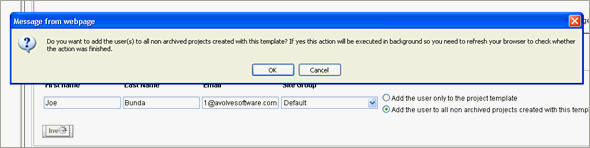
3. Upon confirmation, the system will add the user to all non-archived projects created with the same project template you selected.
This task occurs in the background. Its completion
time will be determined by the number of projects the user is being
added to.
