To view project files, enter a project folder by clicking the folder name. A list of files will display on the screen. Each file can be opened by clicking on the file name. By default, the viewer displays in a separate window, full screen.
Using the Viewer in separate window mode allows you to have multiple Viewer windows open simultaneously.
Separate window mode can take advantage of multiple monitors: Viewer and ProjectDox windows can be viewed and moved independently between monitors.
The number of Viewer windows are affected by the client machine resources. If you find that the Viewer windows are getting slower, close some of the instances of the Viewer. Generally, eight windows fall within a good user experience.
Anywhere in ProjectDox that you see the Markup Exists indicator  , you can launch the file with the desired markup overlaid.
Click the icon to display a details screen of the associated markups.
Click View to view one or more markup files in Brava with the markups overlaid for review only. You can select individual markups for view or edit.
Click Edit to view the file in Brava and open the markup for editing. Only one markup may be selected for edit. The Edit and Delete columns will only be seen if you have markup Create and Delete privileges.
Click the View/Edit button to launch your selected markup layers in the ProjectDox viewer, along with the associated file.
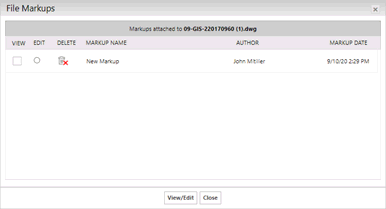
The Delete icon is only available if you have been granted Delete Markup permissions. For help in using the Brava! view and markup features, click the  icon of the Brava! Viewer user interface to launch a full, separate online help system. ProjectDox has activated the appropriate functionality for electronic plan review.